
The Note feature replaces the Checkout and Checkin function on the tableview. During the initial migration, all assigned to data will be copied to the Note Column. When a Note is clear, it will automatically clear teh assigned to column. To STOP the clearing of the assigned to column, open the “My Company” page on the RHS menu and disable the setting “Clear Assigned To when Notes are cleared”

Add a Note:
- Select the record(s), Click on the More options on the toolbar header
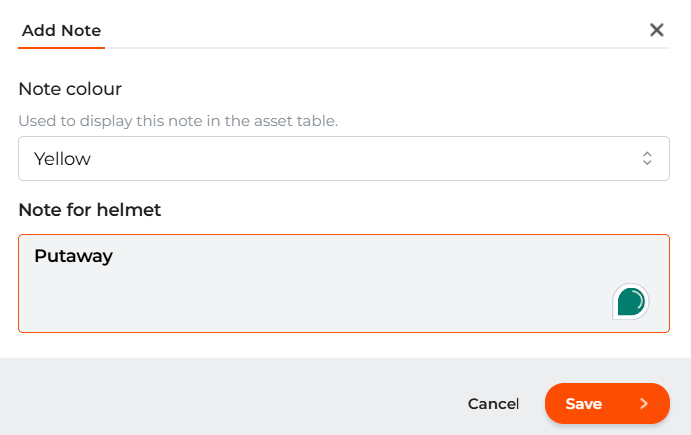
- Select “Add Note”
- Select the colour of the Note
- Enter the comment/label and click on “Save”
Clear Note
- Select your data record(s)
- Select “Clear Note” on the RHS More options menu
Edit Note
- To update a Note, Select the Edit Note option from the RHS menu and Save.