Defects Management
The EZYiD Defects Management System enables organisations to identify, record, track, manage, and resolve equipment defects across your safety assets, tools, PPE, and operational equipment. The key benefits of the Defects system is to quickly identify unsafe equipment and remove from service, leading to better compliance, audit records and reduced operational risk. The defects system is tightly linked to the asset and inspection workflow. Users can create defects during an inspection, task or a returns events, while defects are resolved or cleared via a maintenance task only. A defect is any observation, minor fault or damage, major non-conformance, or critical unsafe condition identified on your safety PPE and assets. You can create defects during a inspection or directly against one or more assets.- To create a defect during an inspection
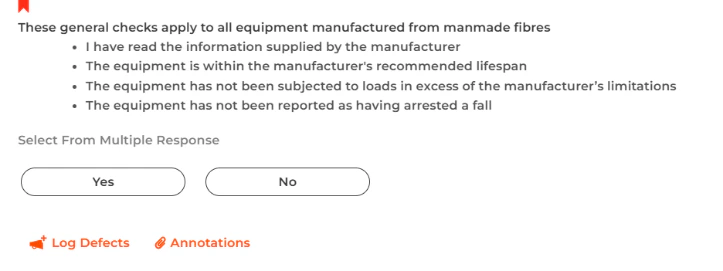
- Select the Log Defects icon below each question/response in the inspection checklist
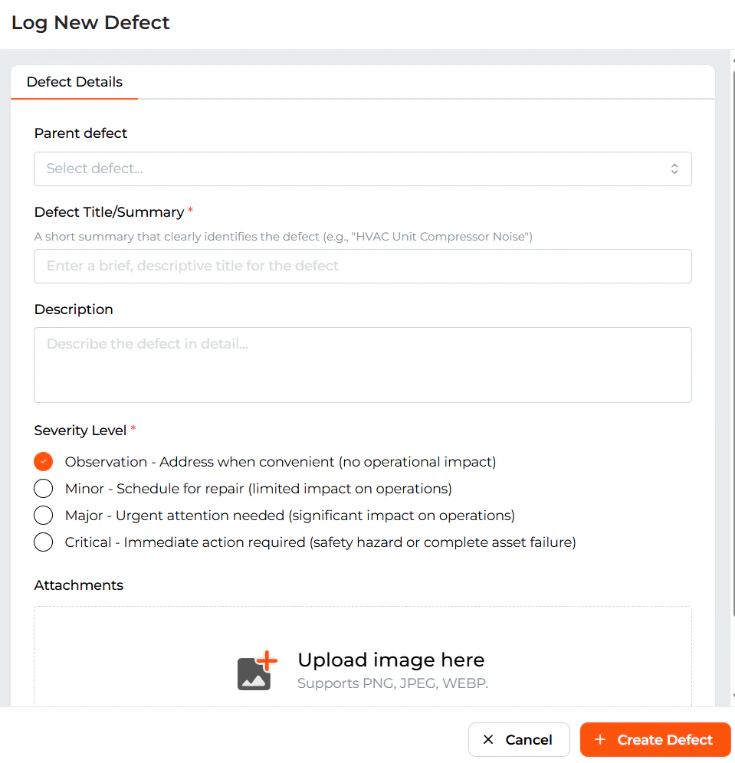
- Enter the defect title in the Log New Defect pop-up page
- Enter the description to the defect
- Select the severity level of the defect
- Observation (for non-operational issues that just need monitoring)
- Minor (limited impact of operations that can be addressed later)
- Major (urgent attention need with significant impact on operations)
- Critical (safety hazard or failure requiring immediate attention)
Updating your equipment defects
During a repetitive inspection you can update or add to your defect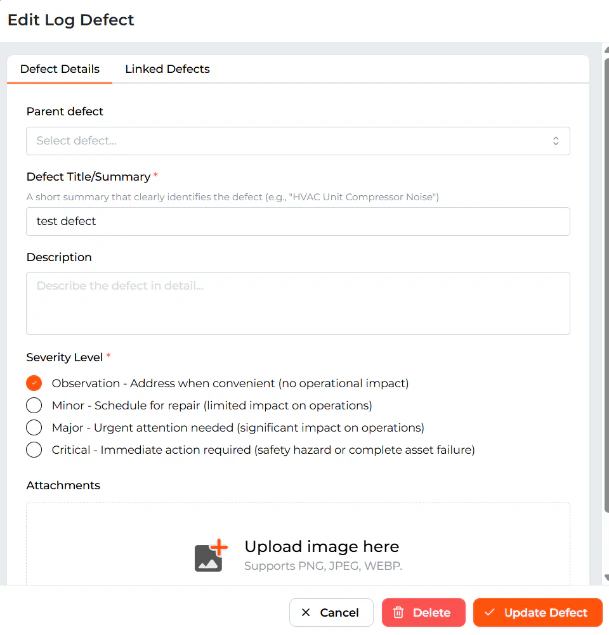
Logging New Defects
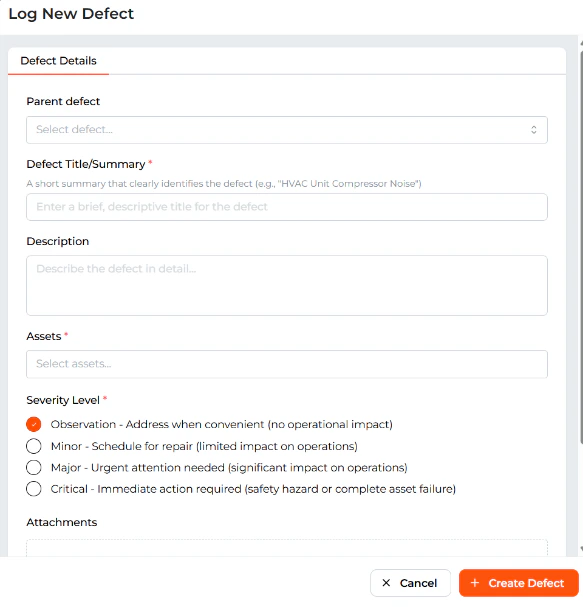
To log a new defect- Select “Defects” on the LHS main menu
- Enter the defect title
- Select your asset(s)
- Select the severity
- Select the “Create Defect” button to save the defect.
Reservation System
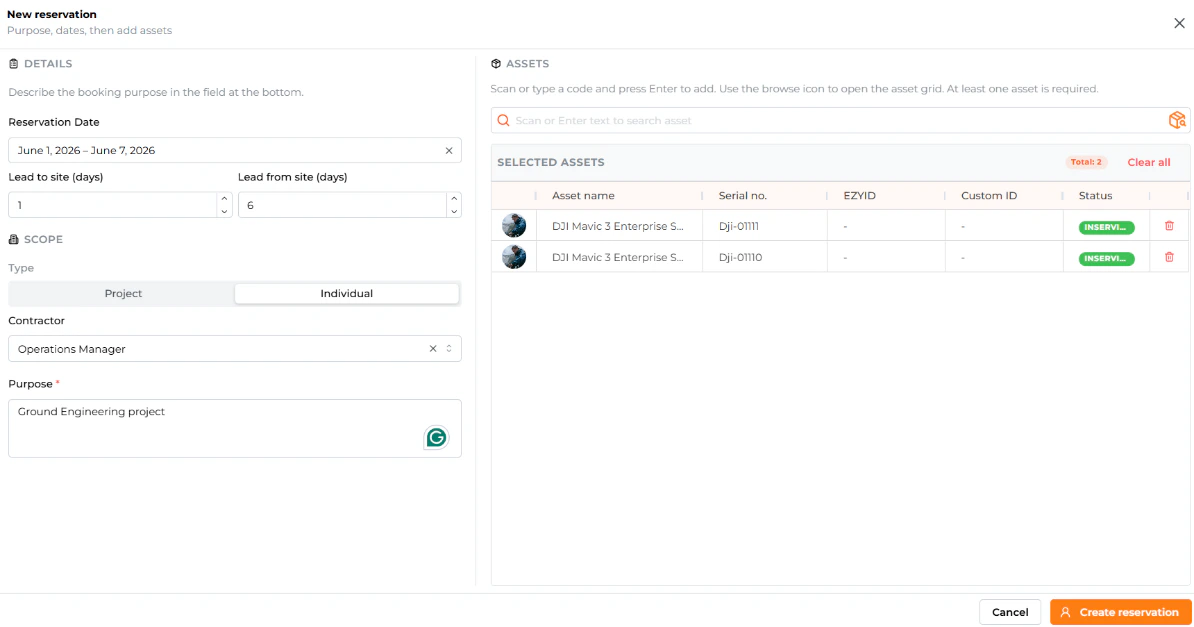
The reservation system enables users to reserve equipment in advance for projects, sites or individual use. It introduces a structured “booking-first” workflow, ensuring:- Equipment availability is known before mobilisation
- Conflicts and double-bookings are eliminated
- Compliance and readiness are validated before dispatch
- Select the “Material, Reservation” from the LHS main menu
- The Reservation dashboard, displays all reservation by default
- Select the “Upcoming” reservation displays all reservations where the start date is in the future
- Select the “Awaiting Checkout” tab displays all reservations that have been approved and awaiting checkout or mobilisation to a project
- Select the “Completed” tab displays all reservations that have been allocated to individuals or projects.
- Select “New Reservation”
- Enter your reservation date timeframe
- Enter the before use lead time and after use lead time to return equipment to the warehouse.
- Select “Individual” for individual use
- Select the equipment from the right asset select icon
- Select “Create Reservation” to submit reservation for approval