Asset Records Onboarding
Asset records can be created individually or uploaded from a excel spreadsheet or accepted via a material order transfer from your supplier. Refer to Material order system for onboarding assets from partner.Preparing your data files for import into EZYiD
Whether you are new customer migrating your asset register or updating newly purchased assets, importing helps you create multiple records in the most efficient manner. An Import file is a spreadsheet of data records used to organise and define your assets, it’s location and compliance information. Before you start your import, review the relevant EZYiD terms and requirements for your import file. NOTE: Importing of more than 500 records will be batch processed in the background. This is primarily to reduce the load on the database. You will not see all your imported records appear in the asset table immediately. You will need to allow some time for the background import to complete.
Key Terms
Record: is a row in your spreadsheet representing a physical object by its Category, Serial No, Custom ID or the EZYiD EPC hexadecimal code attached to the object.
Unique Identifier: is the key used to recognise or differentiate each record in your database. You must have a unique value in either the Serial No, Custom ID or EZYiD cells.
Site: the physical location of the object saved in the record. It is mandatory for all records.
Frequency: of safety inspections or maintenance tasks mandated by your industry regulation or business policy.
Last Inspection Date: is the date when an inspection was completed
Your Columns: are the columns heading defined in your import spreadsheet.
EZYiD default Columns: are the predefined asset table properties that can store your record data.
Mapped Columns: represents the association between your data columns of your spreadsheet and the EZYiD database columns. The spreadsheet below displays the minimum criteria to create an asset record in the EZYiD database.

Refer to the sample import spreadsheet for a more detailed explanation of each column and its properties.
Import Requirements
File requirements
- All files imported must be a .xlsx or .xls file.
- Have only one sheet.
- Contain fewer than 4000 records.
- Include a header row for each column that can be easily recognised and mapped to the EZYiD database.
- Remove any merged cells from your header rows.
- All Custom ID must be unique in your organisation.
- All Serial No must be unique when paired with the Manufacturer Name.
- All EZYiD data must be unique across the global database.
- A short date format for any date cells.
- Last Inspection dates must not be in the future.
Onboarding your existing records
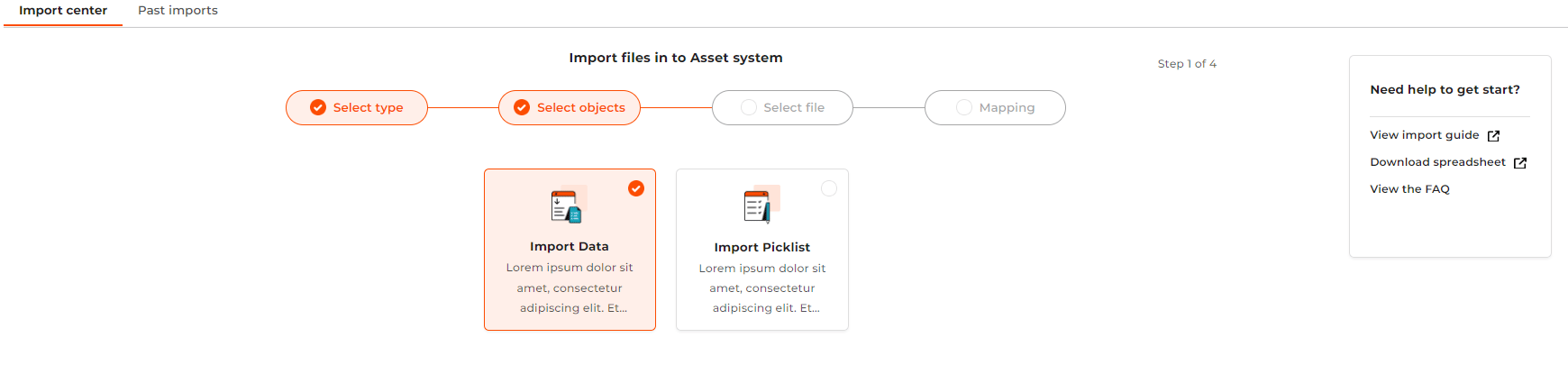
The upload function does not allow you to upload historical inspection activity for an individual asset. We recommend that you archive historical inspection data to satisfy your regulatory compliance and audit obligations.- To import data records, click on the Table menu icon
 and select the “Import data” option. Click “Next”
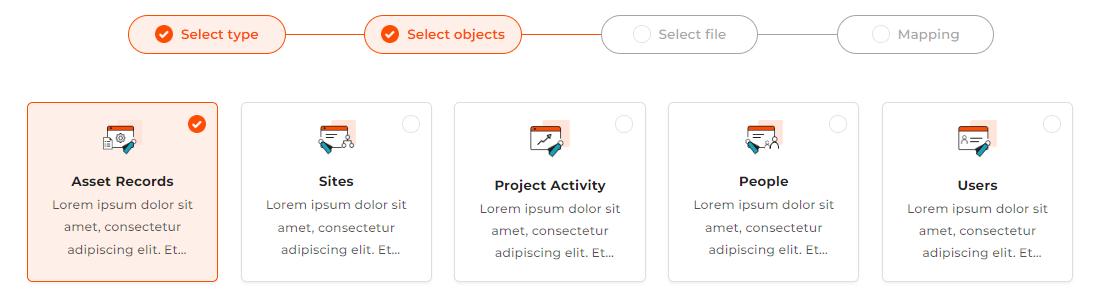
- Select the data object table that you wish to update. Select “Asset Records” to update your assets register.
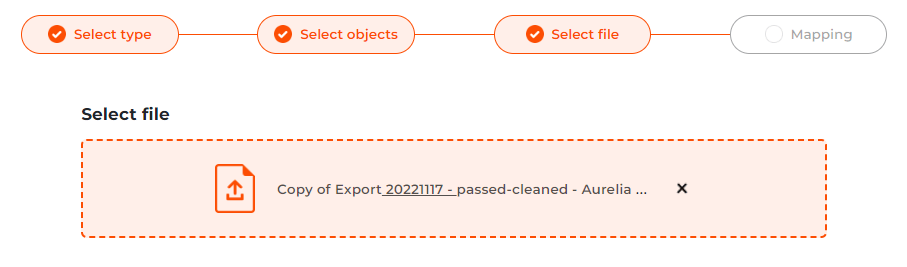
- Select the spreadsheet import file and press “Next”
- The import function reads all columns in your spreadsheet into the “Data Mapping dialog” tab. Refer to “EZYiD Column definition” in table below
- You will now need to map your spreadsheet column headers to the EZYiD database columns headers in the dropdown selection. Follow your data requirements setout above.
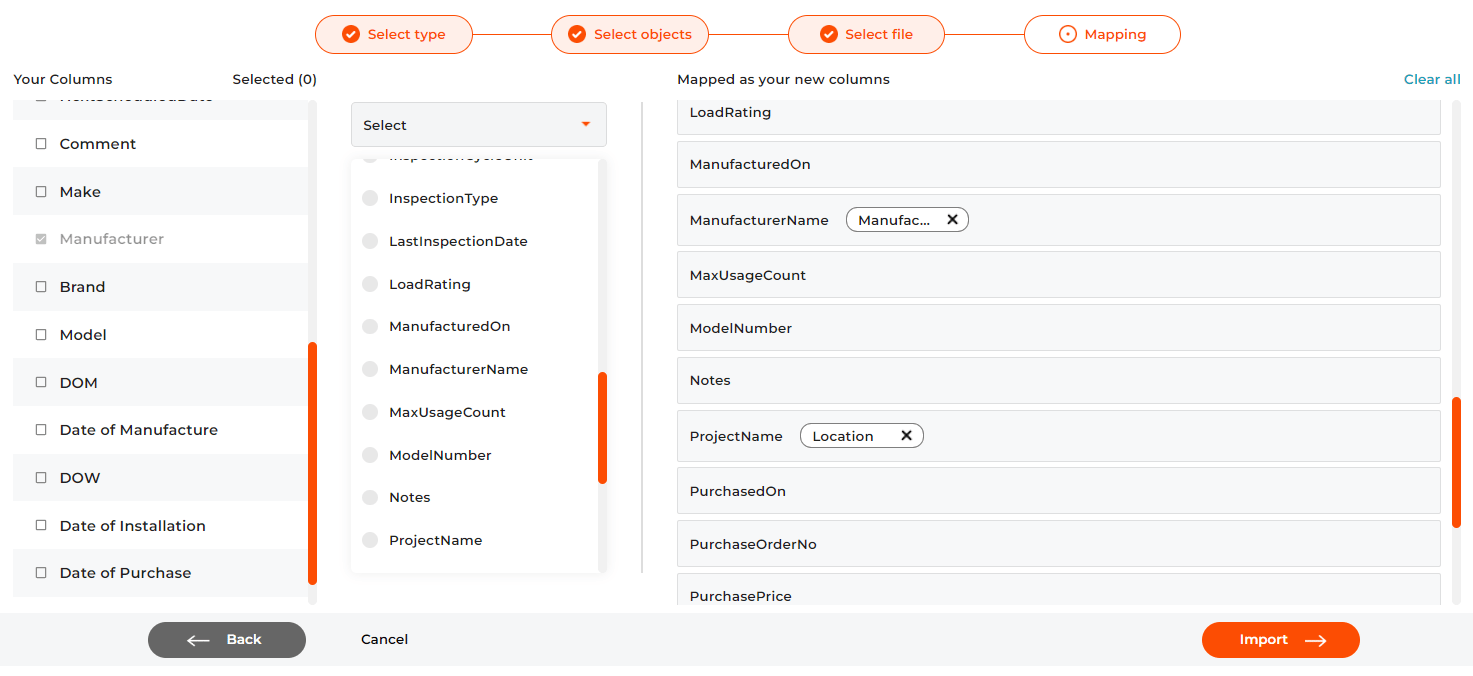
- Continue until your spreadsheet columns are mapped
- Click on “Import” to save the mapping and start the upload
- Records imported are displayed in the Table view and a completion report is emailed to you.
- All assets uploaded will be saved with a status of “Onboarding”
- In case you have made any error, you can delete the onboarded assets and repeat the upload process. Refer to repeat upload below.
- Select “Past Imports” to view you import logs
- You can Click on the uploaded event log to view the imported records in the Table view.
- All upload event have a unique Upload ID to help you search and analyse your uploaded data records.
Repeat uploads
Repeat data imports from the same excel table will not require column mapping. If you wish to reset the mapping, click on the “Clear all” button to restart your column mapping.EZYiD Columns definition
+ for records with compliance policy requirement.
* minimum of one unique identity is required.
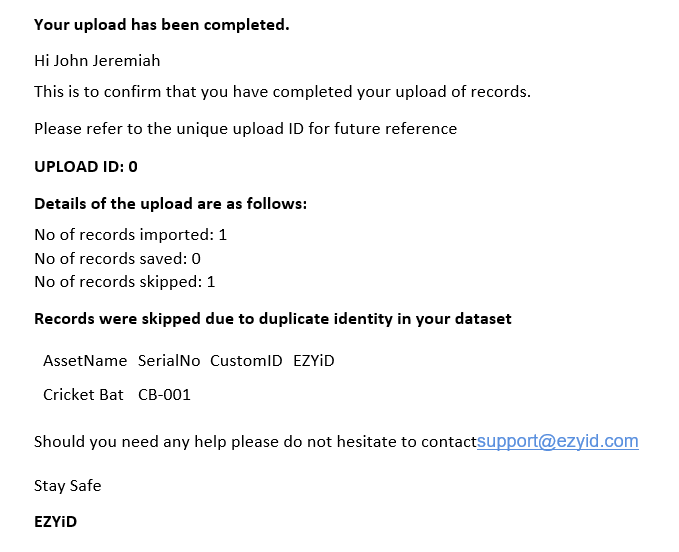
Completion report
A completion report is a record of the data rows read, saved and skipped. Records with the same identity (serial no. EZYiD or Custom ID) are not inserted, but skipped. Sample Completion report for data records import