Notification
A notification is a message to notify or remind you of upcoming or incomplete activity that may result in a non-compliance event for the organisation. There are three ways to receive notifications of events in your EZYiD platform.- Your email inbox
- Your dashboard bell icon; and
- Mobile notifications (coming soon)
Your Email Notification
Your email inbox associated with the EZYiD subscription is where you will receive all email notifications, reminders of (upcoming and overdue inspections) and other automation events. While email notification is a method to remind you without logging into the platform, email notification can also be a powerful tool to monitor and communicate with your customers and user groups (owners, site supervisors and asset custodians) of their (time sensitive) compliance obligations that need to be carried out in their possession.The Bell icon A picture containing circle, graphics Description automatically generated
The Bell icon is where you receive all of your in-app notification alerts addressed to you. The Bell is located on the RHS header section beside the company name. You will receive notification for your organisation or partner(s) when you customise a system alert in the Automation centre.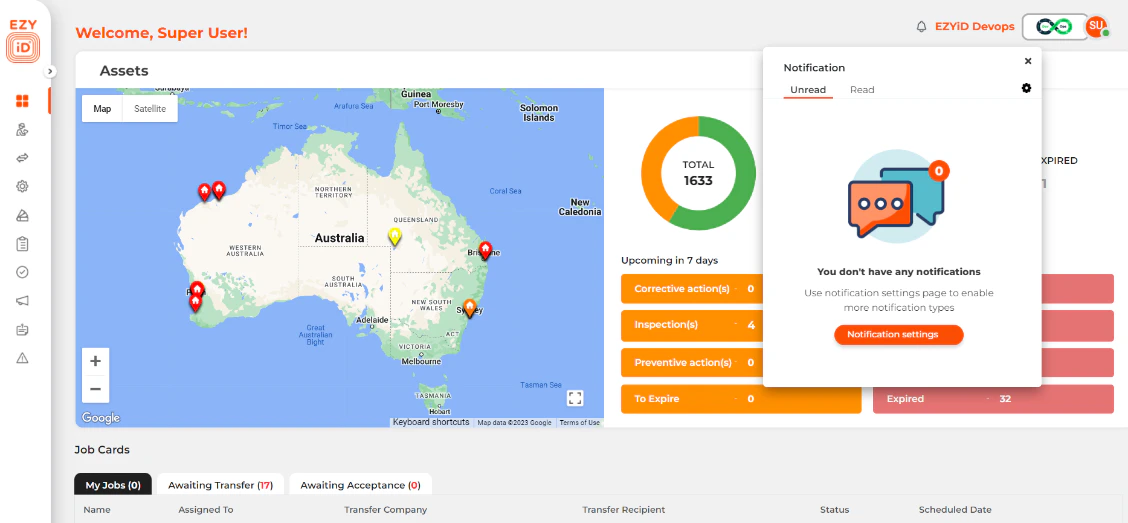
Mobile Notifications (coming soon)
Mobile notifications are messages you receive when you have the EZYiD app installed on either your tablet or mobile phone. By enabling push notifications in your preferences, you will be notified of events, even when not logged into your EZYiD app. You can activate and deactivate your notifications by clicking on the bell icon in your mobile app or your notifications app settings in your phone settings.Enabling Notifications
By default, your bell notifications on your dashboard for your upcoming and overdue inspections will be turned on. The default reminder alert setting (days) for upcoming inspections is adopted from your “My Company” settings page, alert internal. You can change your defaults by going to your “My Preference” settings to activate email, push and SMS notifications or customising your reminder days and subscriber, site or category filters.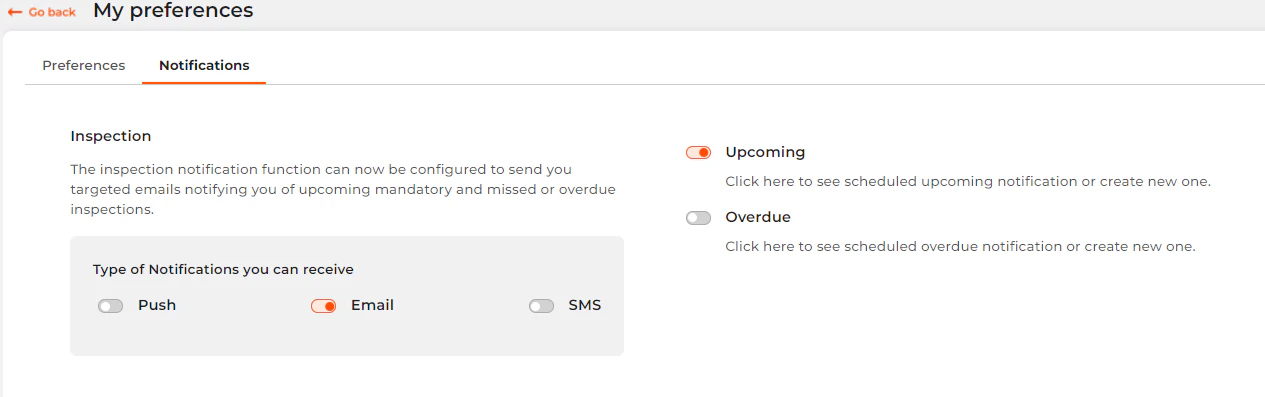
Customising your notification
An EZYiD notification is the result (action) of an automation event, that has occurred or completed (the trigger), in the EZYiD platform. To customise your system notifications, you can either click on the notification settings or the notifications tab in the “My Preference” page or the “Automation” function on the RHS menu. In your automations centre, select either an upcoming or overdue system alert and add to the event board. You can add multiple automation events to notify you of customers and site or category customised notifications. When you select an upcoming inspection system alert, you can customise: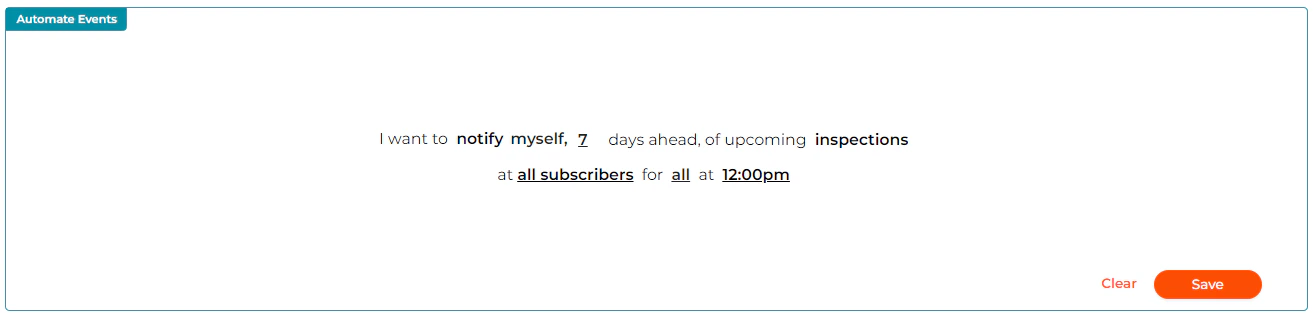

- Remind me before (days). Only applicable for upcoming events;
- Customise your subscriber organisations and sites. You can select specific sites within your organisation to monitor and remind you of your safety compliance tasks. You can also monitor your partners/customers assets for upcoming compliance tasks;

- Customise your product categories. You can select product categories that you wish to monitor for safety compliance tasks; and
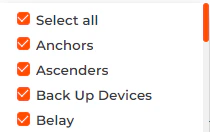
- The time to send out notification. This is the set time that the automation event will run. Note that this time refer to the time zone setting in your user profile. Refer to Time Zone settings.
The Dashboard
The EZYiD dashboard structure is made up of navigation elements and the data elements. The navigation elements include the LHS functional navigation menu and the RHS system configuration menu, which have been described in the System navigation and definition section. The data elements include the map interface designed to drive visual user engagement and the data tables designed to tell a story and focus attention towards critical safety issues with alerts and reminders.The Compliance Dashboard
The key elements of the compliance dashboard are:- Sites – Select your site from the dropdown
- Asset Location
- Asset Status includes inservice/ certified, quarantined/ isolated and expired/ defective/ scrapped/ condemned
- Upcoming Safety Inspections
- Upcoming Expiries (asset to expire in the next 30 days)
- Overdue Safety Inspections
- Expired assets
- Hover over the map pin
 to identify the name of the location or asset.
 - To select a site, click on the location pin and your map will zoom into the site.
- When the location is changed, your data table is updated with location specific asset and safety data
- The map view at a site level, displays projects and assets pinned to a lat/long.
Tracking the real-time location of your critical asset
EZYiD now includes GPS tracked assets that can be viewed in real-time. Click on the “Live Assets” tab in the dashboard map to view the location of your GPS tracked assets. You can click on the pin to view the name of the asset and edit by clicking on the name.Checking your alerts and reminders via the map view
- Click on the amber pin to identify the asset or site with any reminders - upcoming inspections or actions
- Click on the red pin to identify the asset or site with any alerts – overdue inspections or actions
- Click on the alert or reminder and all assets associated with the alert or reminder will be filtered and displayed in the EZYiD table view.
Compliance Data Table
Asset Useful life threshold configuration
EZYiD allows you to monitor and measure the useful life of your assets either by its usage units, time (years) or version of software. To set the Unit usage-based limits:- Edit the asset or you can add the setting when creating the asset
- Select the “Additional information” tab
- Select the “Useful life in” dropdown to “Unit”
- Update the “Service Life/Version” to the recommended number.
- Edit the asset or you can add the setting when creating the asset
- Select the “Additional information” tab
- Select the “Useful life in” dropdown to “Years”
- Select the start date recommended by the manufacturer, select the “Starting from” dropdown and select either the “Date of Manufacture” or the “Date of First Use”
- Update the “Service Life/Version” to the recommended years
- The Expiry date of the asset will be automatically calculated
- You can also edit the asset and update the “Expiry date” without using any of the above threshold conditions.
- Edit the asset or you can add the setting when creating the asset
- Select the “Additional information” tab
- Select the “Useful life in” dropdown to “Version”
- Update the “Service Life/Version” to the minimum supported version
- Update the version installed on your device by clicking on “Update Usage/Version” on the RHS menu. If the installed version recorded in the Usage Count/Version column is less than the minimum supported version, the asset will be set to non-compliant.