Checkout and Returns Management
The EZYiD Checkout & Returns Management System enables efficient tracking and custodianship of tools, equipment, and PGM asset across stores and PGM huts. The key functions of the Checkout system include:- Self-Checkout and Returns Kiosks
- Operator-Assisted Checkout
- Operator-Assisted Loans (for long term assignment of equipment to employees and contractor)
Self-Checkout
The Self-Checkout kiosk is designed for open access within your store. The self-checkout system is available on android terminals and can also be used on your windows desktop browser.- Your Kiosk must be registered with a passkey. To generate your passkey:
- In you EZYiD admin account, Select the “My Preference” button on the RHS menu and then select the Checkout Tab.
- Click on Generate to create a new passkey.
- Passkeys are only available for authorised subscribers who have purchase the Self Checkout product.
Using your Self-Checkout Kiosk to Checkout a PGM
- Scan your authorised Access pass on your kiosk. When scanned, you credentials are displayed on the kiosk display
- Scan all items and PGM
- Review items, if necessary and
- Press the ‘Checkout’ button on the top RHS
- The “Assigned to” data column on the EZYiD asset table is updated with the Worker Name. This is a non-editable field recorded against the asset.
- In the Checkout Dashboard, the PGM checkout is recorded with the expected return / due date.
Operator-Assisted Checkout
To complete a Operator-Assisted Checkout, you will need to be logged into the EZYiD admin terminal.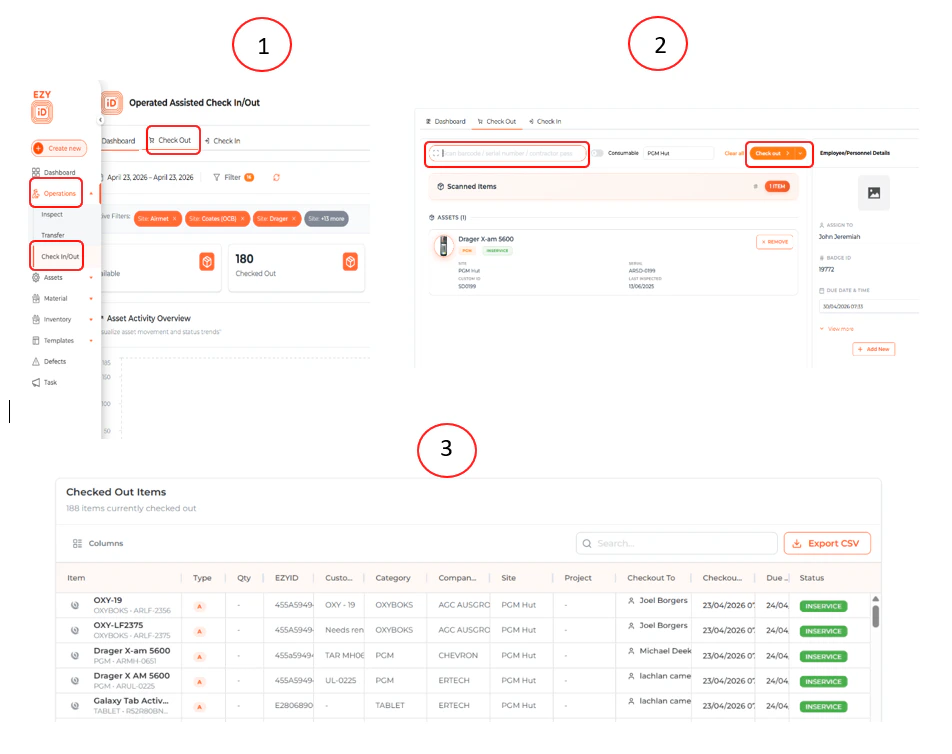
- Click on the Operations menu item on the LHS menu
- Click on Checkout/Checkin
- You will now be displayed the Checkout/Returns Dashboard
- Click on the Checkout Tab
- Scan your authorised Access pass on your kiosk. When scanned, you credentials are displayed on the kiosk display
- Scan all items and PGMs
- Review items, if necessary and
- Press the ‘Checkout’ button on the top RHS
Operator-Assisted Loans
To complete a Operator-Assisted Loan, you will need to be logged into the EZYiD admin terminal. Loan of PGM or equipment is only available on the EZYiD admin account.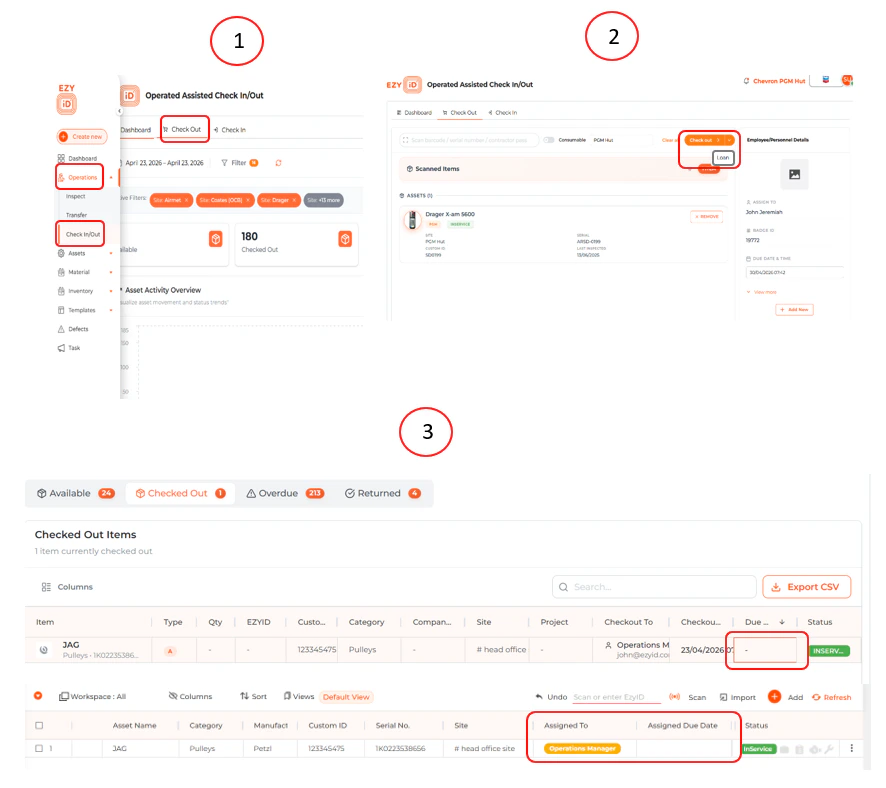
- Click on the Operations menu item on the LHS menu
- Click on Checkout/Checkin option
- You will now be displayed the Checkout/Returns Dashboard
- Click on the Checkout Tab
- Scan the workers Access pass on your terminal or enter their email. When scanned, the worker credentials are displayed
- Scan all items and PGMs
- Click or Press the “Checkout” button on the top RHS corner.
Returns
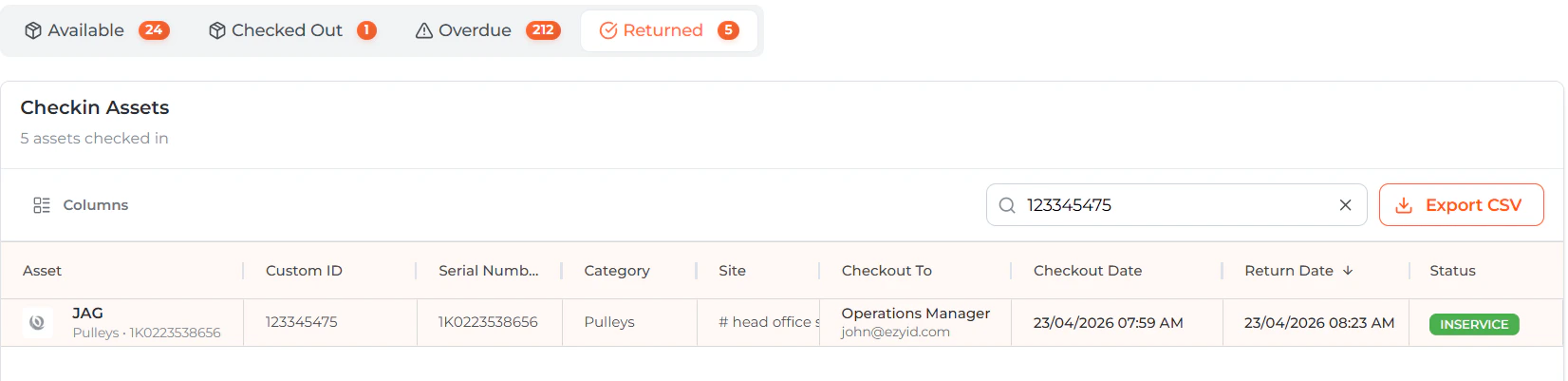
EZYiD allows return of equipment to be completed by any user or worker. Returns can be completed on the dedicated Returns kiosks by just scanning your PGM to record the return of tools and PGMs.