
Asset Ownership Setup
This guide explains how to set up ownership types and suppliers, assign ownership when creating or uploading assets, and print an asset register by ownership. Ownership types identify whether equipment is owned, leased, hired or held under another arrangement. For hired equipment, record the supplier so users can identify who provided the asset.
Set up ownership types
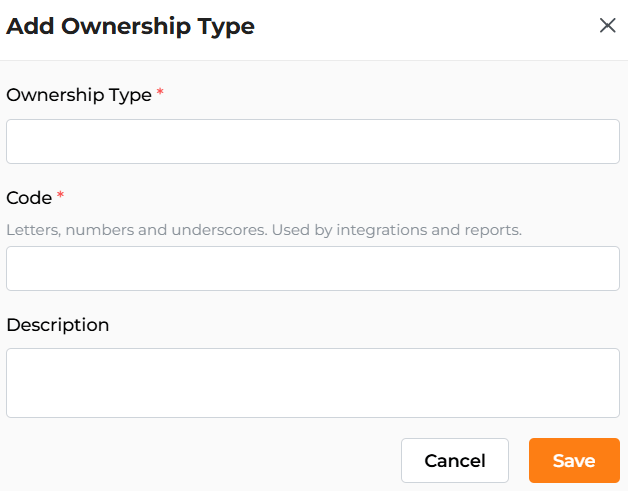
Administrators define the ownership types available to users in Settings.- Open the Settings page and navigate to Ownership Types.
- Add the ownership type name your organisation requires, such as Owned, Leased or Hired.
- Select the predefined Codes (HIRED, OWNED, LEASED, PROJECT, FOR HIRE, OTHER) to associate with the Ownership.
- Save your changes. The configured ownership types are then available for users to associate with their assets.
Set up suppliers
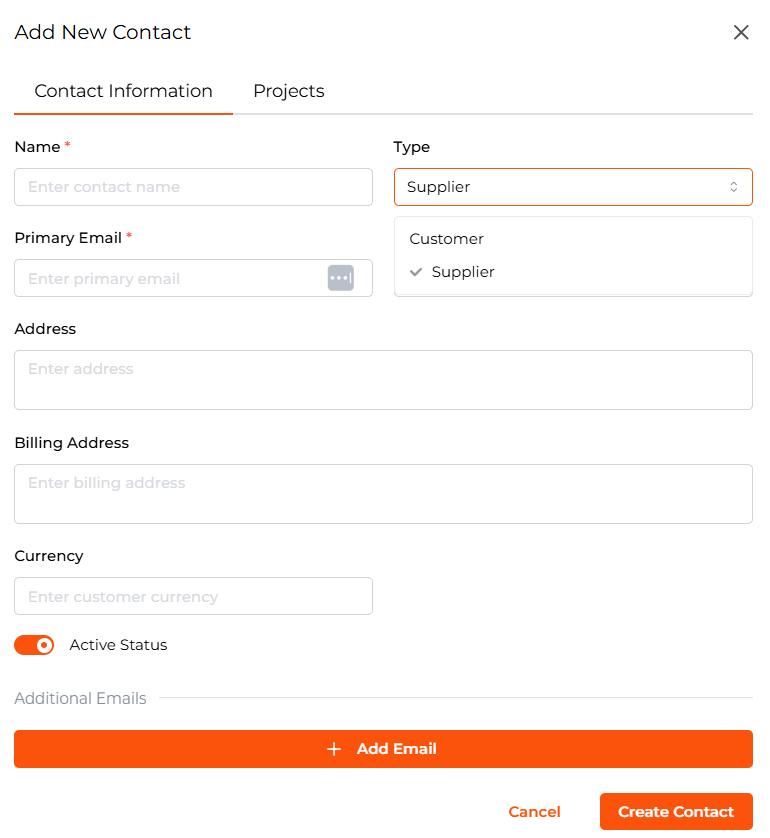
Supplier records are maintained on the My Contacts page.- Open My Contacts.
- Create a contact and enter the supplier name and relevant contact details.
- Select Supplier as the contact Type.
- Save the contact. All contacts created with the type Supplier are available in the Supplier dropdown on the Asset Create page. Tip: Use a consistent supplier name and check for an existing contact before creating another record.
Create an asset with ownership
- Open the Asset Create page.
- Complete the required asset details.
- In the Ownership field, select the appropriate ownership type.
- For Hired equipment, select the supplier from the Supplier dropdown or enter the supplier name directly.
- Save the asset. The Supplier dropdown lists suppliers set up in My Contacts with the type Supplier. To make a supplier available in this list, follow the supplier setup steps in Section 2. Example: When recording equipment hired for a project, select Hired as the ownership type and specify the supplier providing the equipment.
Include ownership in an asset upload
You can assign ownership when uploading new assets in bulk, including newly hired or leased equipment.- Prepare your asset upload file.
- Enter the appropriate ownership type in the ownership column for each asset.
- Use the ownership names defined by your administrator in Settings.
- Upload the file using the asset upload process.
Print an asset register by ownership / Supply Report
- Open the Asset Register.
- Select the ownership type you want to report on.
- Print the asset register for that selection. For example, print a register of Hired assets to review hired equipment, or Owned assets to report on company-owned equipment.