> ## Documentation Index
> Fetch the complete documentation index at: https://help.ezyid.io/llms.txt
> Use this file to discover all available pages before exploring further.
# Notes
Sticky Notes
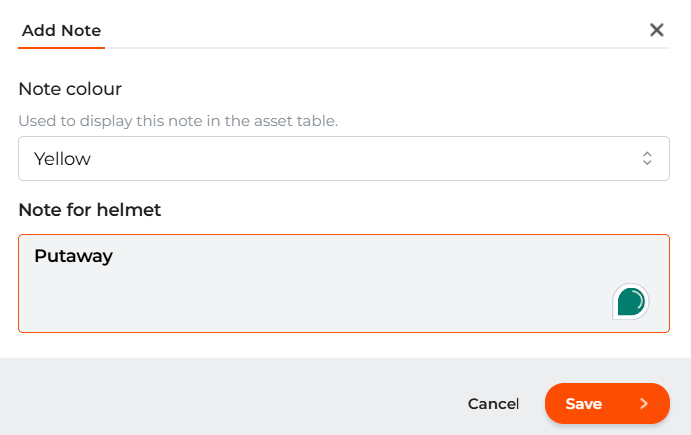
Notes are an easy way to categorise or apply a temporary label on your record to differentiate from the rest. Similar to the sticky note concept, you can apply different colours and labels to quickly find and group your records
The Note feature replaces the Checkout and Checkin function on the tableview. During the initial migration, all assigned to data will be copied to the Note Column. When a Note is clear, it will automatically clear teh assigned to column. To STOP the clearing of the assigned to column, open the "My Company" page on the RHS menu and disable the setting "**Clear Assigned To when Notes are cleared"**
 ### Add a Note:
* Select the record(s), Click on the More options on the toolbar header
* Select "Add Note"
* Select the colour of the Note
* Enter the comment/label and click on "Save"
### Add a Note:
* Select the record(s), Click on the More options on the toolbar header
* Select "Add Note"
* Select the colour of the Note
* Enter the comment/label and click on "Save"
 ### Clear Note
* Select your data record(s)
* Select "Clear Note" on the RHS More options menu
All Notes saved are also appended to the Notes page in the asset edit page.
### Edit Note
* To update a Note, Select the Edit Note option from the RHS menu and Save.
You search, sort and filter by your Note column. On your EZYiD Lite app, you can group your records your the Note column.
### Clear Note
* Select your data record(s)
* Select "Clear Note" on the RHS More options menu
All Notes saved are also appended to the Notes page in the asset edit page.
### Edit Note
* To update a Note, Select the Edit Note option from the RHS menu and Save.
You search, sort and filter by your Note column. On your EZYiD Lite app, you can group your records your the Note column.