> ## Documentation Index
> Fetch the complete documentation index at: https://help.ezyid.io/llms.txt
> Use this file to discover all available pages before exploring further.
# Asset Mobilisation & Compliance Status
> Mobilising assets to site and managing their status on acceptance to maximise the days of compliance onsite.
Material Order Acceptance: Onboarded / Available → In-Service / On-Hire
To complete a pre-ship inspection, you will require a compliant checklist to cover all asset types included in the manifest. General Checklist.
## Overview
EZYiD tracks the mobilisation of physical assets from suppliers of new products, or from the warehouse/yard/depot, to project or customer sites, via the Material Order and Acceptance page. This guide covers the Compliance Status model, which assets are eligible to be added to a Material Order, which of those can actually change status on acceptance, and what dates are captured.
Assets in **Onboarded**, **Available**, **Quarantine**, or **In-Service** status can be added to a Material Order. Once added, an asset is locked to that order and cannot be added to another. On acceptance, only assets that were Onboarded or Available at the time are eligible to change status — to In-Service or On-Hire — with the system capturing the date of that transition. Acceptance also triggers an email notification to the Material Order's requestor.
## Asset Compliance Status Model
Every asset carries a Compliance Status. This guide covers five statuses:
| Status | Meaning | Add to a
Material Order? | Status change
at Acceptance? |
| -------------- | ------------------------------------------------------------------------------------------------------------------------------------------------------------------------------ | ------------------------------ | ---------------------------------- |
| **Onboarded** | A new asset record that has been created
but not yet brought into service. \[Onboarded —
Two Pathways] (#onboarded-two-pathways) | Yes | Yes |
| **Available** | Compliant and held in store/depot,
not currently allocated to any job, project, or hire. | Yes | Yes |
| **Quarantine** | Restricted from active use pending resolution
(e.g., failed inspection, damage, compliance hold). | Yes | No |
| **In-Service** | Mobilised into active use within the organisation's
own operations. | Yes | No |
| **On-Hire** | Mobilised to a customer/client site under a
hire arrangement. | No — Reserved | N/A |
## Compliance Pathways
### Prior to Shipping
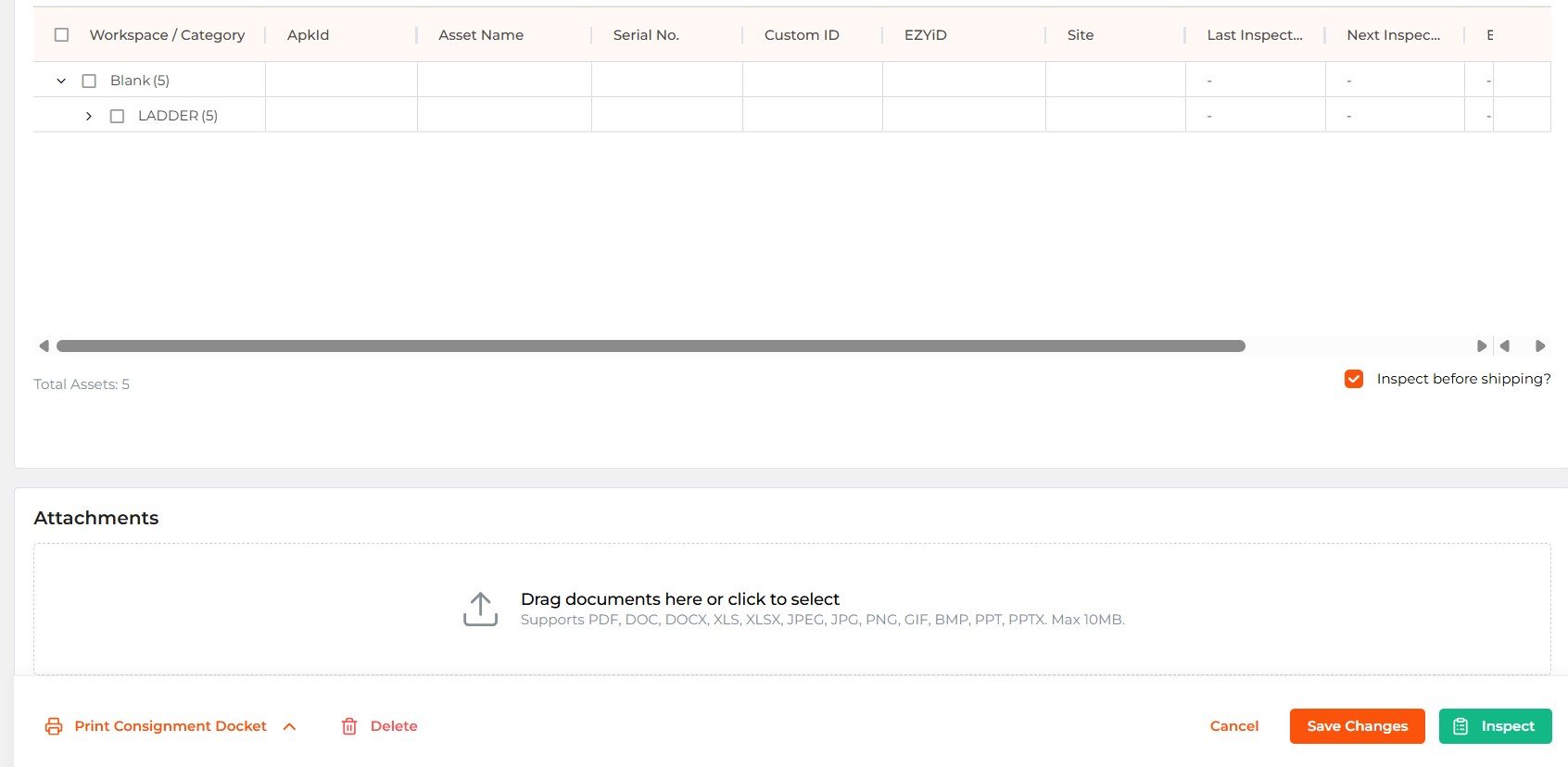
The Material Order now includes a "Inspect before ship" function that requires all assets in the manifest to be inspected prior to shipping. When the Inspection before ship checkbox is enabled, it is mandatory that all assets are inspected before the Ship button is enabled. This offers the maximum number of in-service and compliant days on site.
 ### On-Acceptance
Onboarded assets are new asset records that exist in EZYiD but have not yet been brought into service.
Mobilising an Onboarded asset — accepting a Material Order with onboarded status will require the user to accept or change its status to either In-Service, Available or even Quarantine in case they need to be isolated. This workflow requires an **EZYiD Manager subscription**, typically held by manufacturers or resellers.
There are two ways an asset status can be updated on Acceptance.
**Inspected and shelved (Ready to Go) -** The asset is inspected and set to an Available status, signalling their Operational Readiness.
**Supplier drop-ship** - The asset record is created by a supplier, remaining in a Onboarded status and sent to the customer in a Material Order, ready to be brought into service by the customer on Acceptance of the Material Order.
In the On-Acceptance pathway, the asset can go directly from Onboarded or Available to in-Service or On-Hire on acceptance, without ever going through an inspection. Both Onboarded and Available are considered either new or ready for use, and do not require a thorough examination before mobilisation.
## Material Order Acceptance Page — Workflow
### Adding Assets to a Material Order
A Material Order captures a request to supply one or more assets to a site — whether an internal materials/equipment issue or an external hire agreement. Assets currently in Onboarded, Available, Quarantine, or In-Service status can be added as line items.
**Line-item locking:** once an asset is added to a Material Order, it is restricted from being added to any other Material Order. This applies from the point the asset is added as a line item, regardless of status, and regardless of whether the order has yet been accepted.
### On-Acceptance
Onboarded assets are new asset records that exist in EZYiD but have not yet been brought into service.
Mobilising an Onboarded asset — accepting a Material Order with onboarded status will require the user to accept or change its status to either In-Service, Available or even Quarantine in case they need to be isolated. This workflow requires an **EZYiD Manager subscription**, typically held by manufacturers or resellers.
There are two ways an asset status can be updated on Acceptance.
**Inspected and shelved (Ready to Go) -** The asset is inspected and set to an Available status, signalling their Operational Readiness.
**Supplier drop-ship** - The asset record is created by a supplier, remaining in a Onboarded status and sent to the customer in a Material Order, ready to be brought into service by the customer on Acceptance of the Material Order.
In the On-Acceptance pathway, the asset can go directly from Onboarded or Available to in-Service or On-Hire on acceptance, without ever going through an inspection. Both Onboarded and Available are considered either new or ready for use, and do not require a thorough examination before mobilisation.
## Material Order Acceptance Page — Workflow
### Adding Assets to a Material Order
A Material Order captures a request to supply one or more assets to a site — whether an internal materials/equipment issue or an external hire agreement. Assets currently in Onboarded, Available, Quarantine, or In-Service status can be added as line items.
**Line-item locking:** once an asset is added to a Material Order, it is restricted from being added to any other Material Order. This applies from the point the asset is added as a line item, regardless of status, and regardless of whether the order has yet been accepted.
 ### Changing Status on Acceptance
When the Material Order is accepted, only line items that were Onboarded or Available at the time of adding are eligible for a status change — to In-Service or On-Hire — as part of the acceptance action. This is a per-asset choice: a single order could move some eligible assets to In-Service and others to On-Hire in the same acceptance.
Quarantine and In-Service assets can still be included as line items on the same order (e.g., for logistics, transport, or bundling purposes), but the acceptance action does not change their Compliance Status — they retain whatever status they had before the order was accepted.
### Capturing the Mobilisation or Acceptance Date
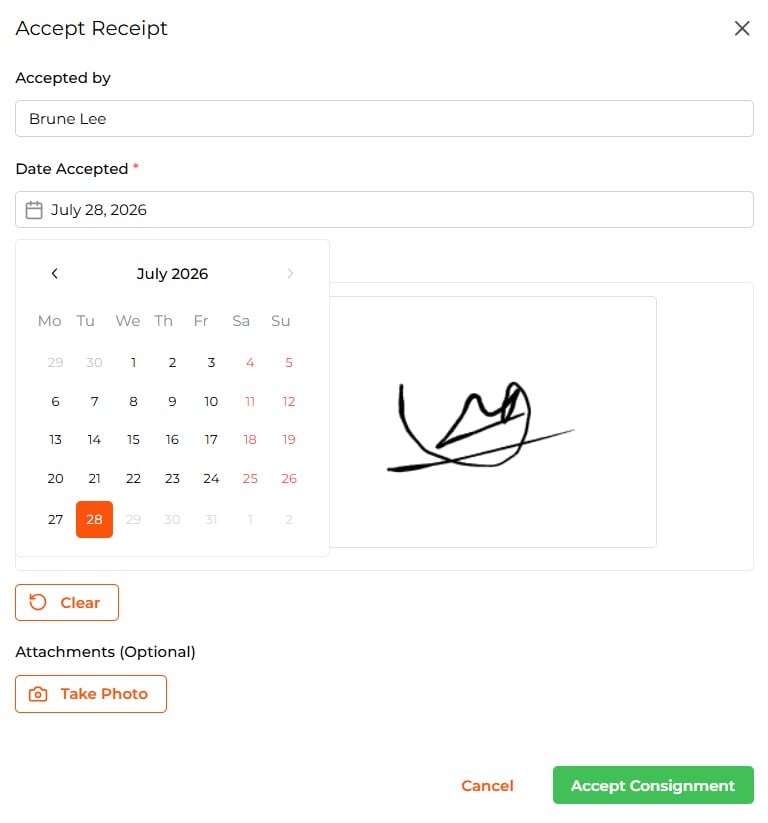
The moment of acceptance is the trigger point for recording the delivery date of the consignment. It can also be used as the start of Hire if supplied under a contract. The acceptance page allows you to back-date the acceptance date in case the consignment was not accepted on the date of receipt.
* **Accepted Date** — captured when an asset's change from in-transit to On-Hire or in-service. This becomes the reference point for on-hire duration, utilisation reporting, and hire billing. User can update or back-date the date of acceptance, if required.
### Recording the Accepted by Name and Signature
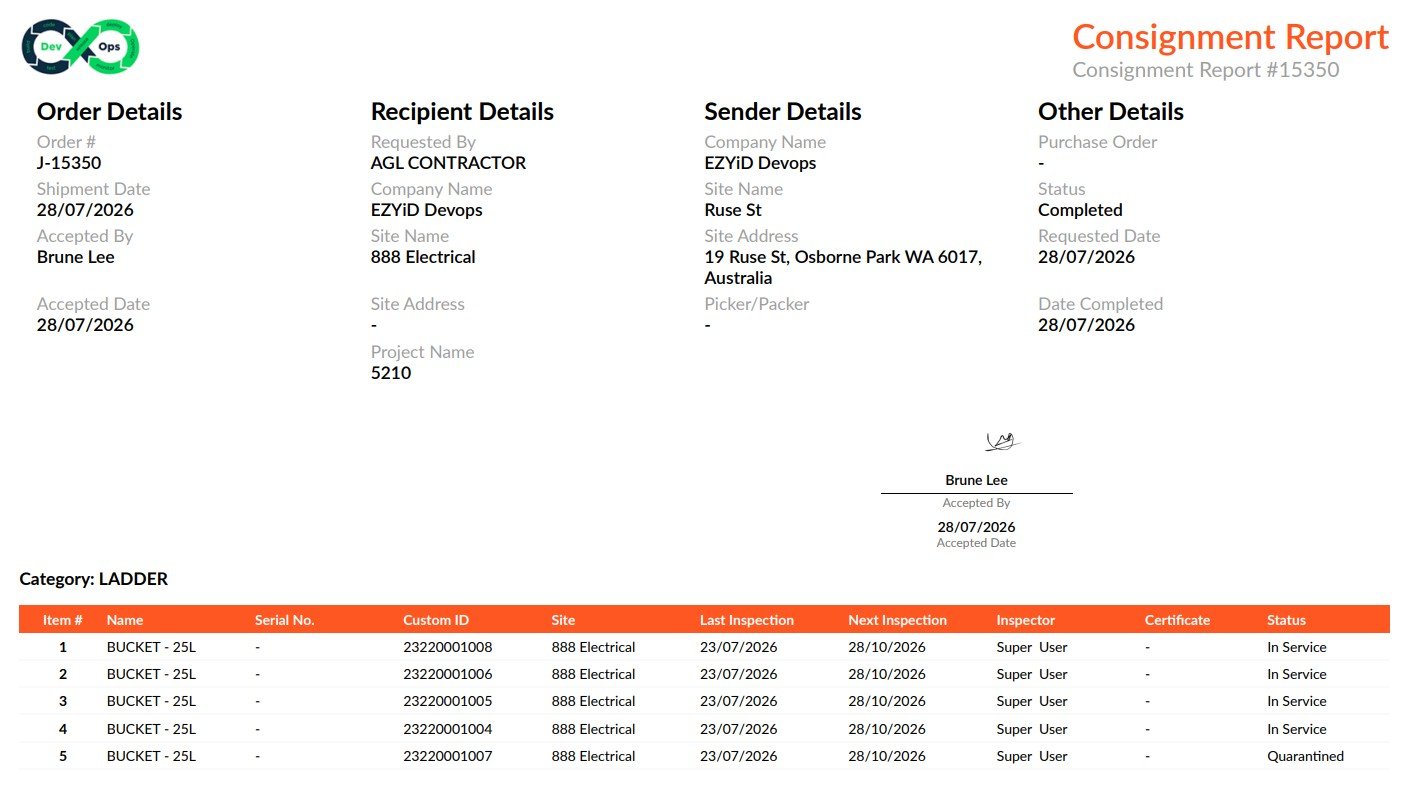
The delivery acceptance page allows the receiver to acknowledge receipt by recording their name and signature as proof of delivery/receipt on site. The Acceptor's name and signature are recorded in the consignment manifest report.
### Changing Status on Acceptance
When the Material Order is accepted, only line items that were Onboarded or Available at the time of adding are eligible for a status change — to In-Service or On-Hire — as part of the acceptance action. This is a per-asset choice: a single order could move some eligible assets to In-Service and others to On-Hire in the same acceptance.
Quarantine and In-Service assets can still be included as line items on the same order (e.g., for logistics, transport, or bundling purposes), but the acceptance action does not change their Compliance Status — they retain whatever status they had before the order was accepted.
### Capturing the Mobilisation or Acceptance Date
The moment of acceptance is the trigger point for recording the delivery date of the consignment. It can also be used as the start of Hire if supplied under a contract. The acceptance page allows you to back-date the acceptance date in case the consignment was not accepted on the date of receipt.
* **Accepted Date** — captured when an asset's change from in-transit to On-Hire or in-service. This becomes the reference point for on-hire duration, utilisation reporting, and hire billing. User can update or back-date the date of acceptance, if required.
### Recording the Accepted by Name and Signature
The delivery acceptance page allows the receiver to acknowledge receipt by recording their name and signature as proof of delivery/receipt on site. The Acceptor's name and signature are recorded in the consignment manifest report.
 ### Acceptance Notification
When a Material Consignment is accepted, EZYiD sends an email notification to the order's requestor. This confirms the order has gone through and, at minimum, should summarise which assets were included and their resulting status.
## Industry Use Case Examples
| **Scenario** | **How this feature applies** |
| ------------------------- | ------------------------------------------------------------------------------------------------------------------------------------------------------------------------------------------------------- |
| Equipment hire dispatch | Available asset moves to On-Hire on order acceptance;
### Acceptance Notification
When a Material Consignment is accepted, EZYiD sends an email notification to the order's requestor. This confirms the order has gone through and, at minimum, should summarise which assets were included and their resulting status.
## Industry Use Case Examples
| **Scenario** | **How this feature applies** |
| ------------------------- | ------------------------------------------------------------------------------------------------------------------------------------------------------------------------------------------------------- |
| Equipment hire dispatch | Available asset moves to On-Hire on order acceptance;
On-Hire Date drives hire billing and return-date tracking. |
| Internal plant deployment | Available asset moves to In-Service; In-Service Date confirms when the asset left the yard for the project. |
| Supplier drop-shipping | Asset is created as Onboarded by the supplier and shipped via a Material Order; the customer's acceptance
brings it directly into In-Service or On-Hire, seeding Date of First Use along the way. |
| Quarantine transport | A Quarantine asset is added to a Material Order for logistics purposes, but retains Quarantine status through
acceptance rather than becoming In-Service or On-Hire. |
| Mixed fleet order | A single Material Order acceptance can move some eligible line items to In-Service and others to On-Hire,
while Quarantine/In-Service line items on the same order remain unchanged. |